Published: September 28, 2026 · 10 min read
Why Docker Exists
Before writing a single Dockerfile, one question deserves a real answer: why Docker exists at all. This lesson builds the answer step by step — from "what is an application" all the way to "how an image reaches your team". Simple English, real diagrams. By the end, two sentences will stay with you: containers share the kernel while VMs carry their own OS, and images travel through a registry the way code travels through GitHub.
In this lesson, you will learn:
- What an application actually needs from the machine under it
- What the kernel does, and why apps never touch hardware directly
- The "works on my machine, breaks on the server" problem — with a real example
- Why one plain server has two problems: no isolation, wasted money
- How virtual machines fix isolation but waste memory
- How containers share the kernel — the biggest idea in Docker
- The three words that define Docker: Image, Container, Docker Engine
- The full flow: Dockerfile → build → image → push → Docker Hub → pull → container
Step 1 — What Is an Application?
Every application needs four things from the machine under it:
- CPU
- RAM
- An operating system
- Files
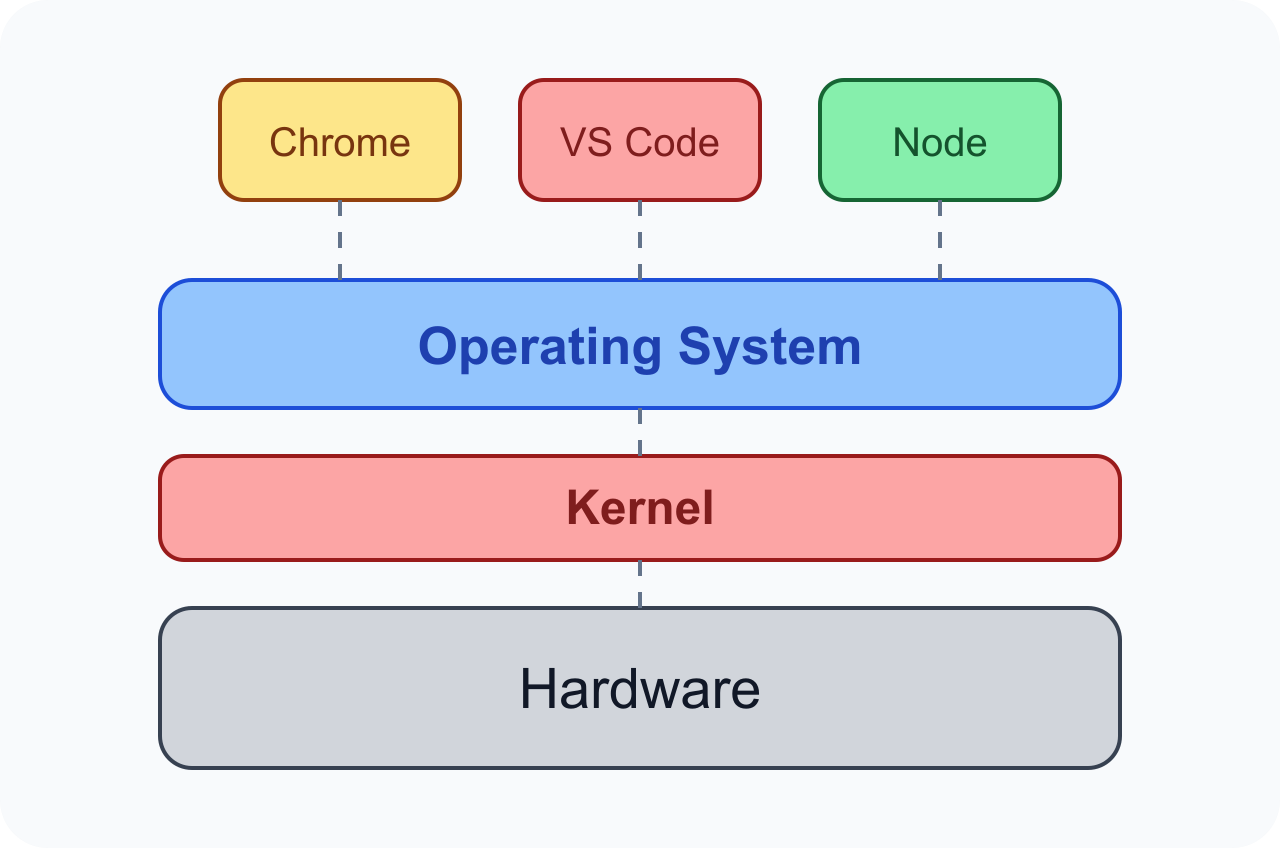
Remember: Applications never talk directly to hardware. They ask the OS.
Step 2 — The OS and the Kernel
Think of the kernel as a manager. It handles:
- CPU management
- Memory management
- Disk access
- Network access
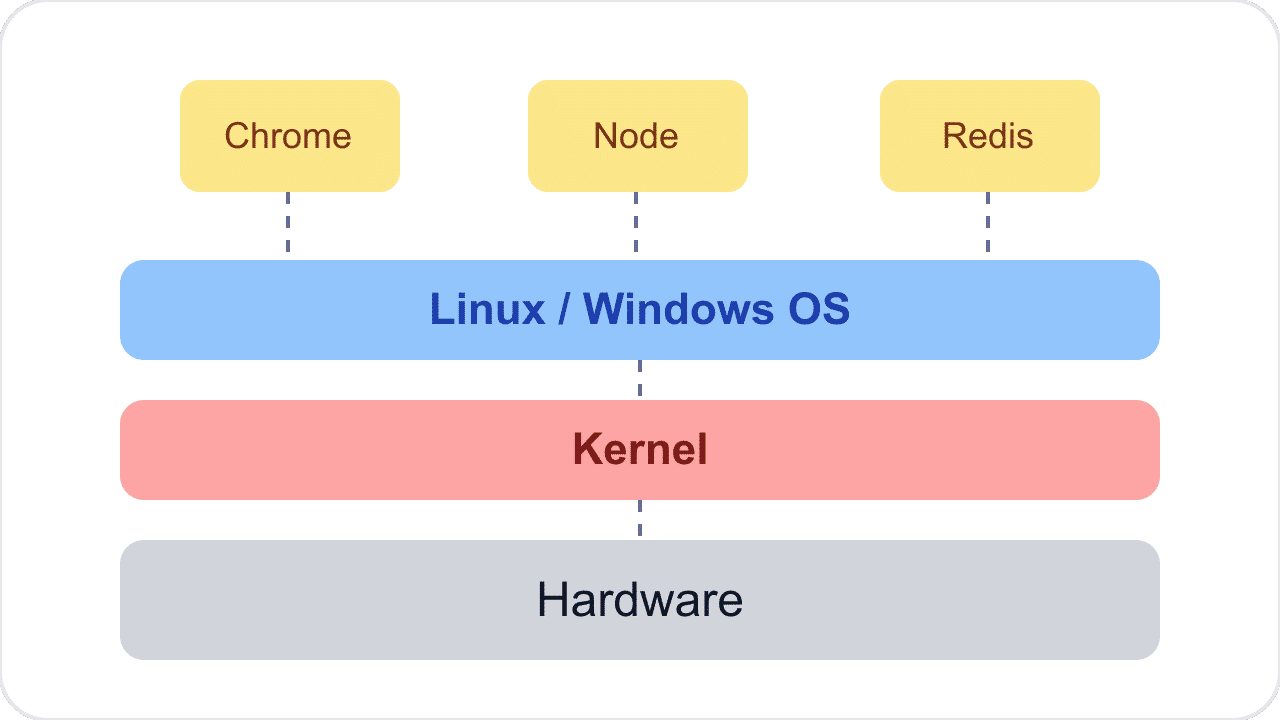
Remember: The kernel is the bridge between applications and hardware.
Step 3 — The Real Problem
You build a React app on your laptop. It works. Now you deploy it to the server.
Same code. Same package.json. But the server has an old Node. The new package refuses to install on it. The app breaks on the server.
This "works on my machine, breaks on the server" problem is the reason Docker became popular.
Step 4 — One Server, Two Problems
Before we learn VMs, look at one plain server.
Problem 1: no isolation. You install Nginx, Node, and Python — all on the same server. Everything shares everything. You upgrade Python for one app, and another app breaks. One app eats all the memory, and every app slows down. There are no walls between them.
Problem 2: wasted money. Another server runs only one small Node app. The app uses maybe 10% of the CPU and RAM. The other 90% just sits there. You still pay for the full server. Not efficient.
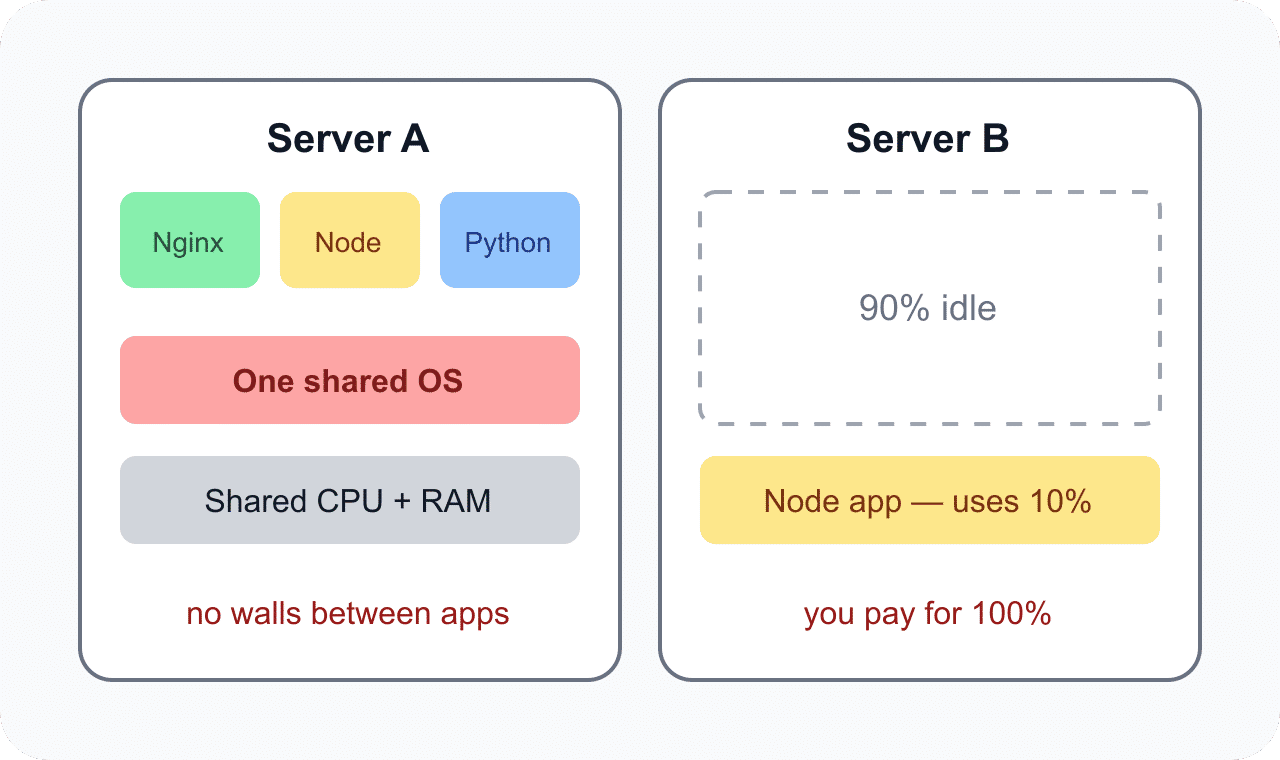
The idea: Cut one big server into small, separate rooms.
That idea is called virtualization. It fixes both problems.
Step 5 — Virtual Machines
A virtual machine (VM) is one of those rooms. The key point: a VM contains its own full operating system.
Each VM gets its own fixed slice of the server:
- Its own CPU share
- Its own RAM block
- Its own disk space
- Its own OS and files
VM 1 cannot touch VM 2's memory. If VM 1 crashes, VM 2 keeps running. You upgrade Python inside VM 1, and VM 2 does not even know. These are the walls we wanted — real isolation.
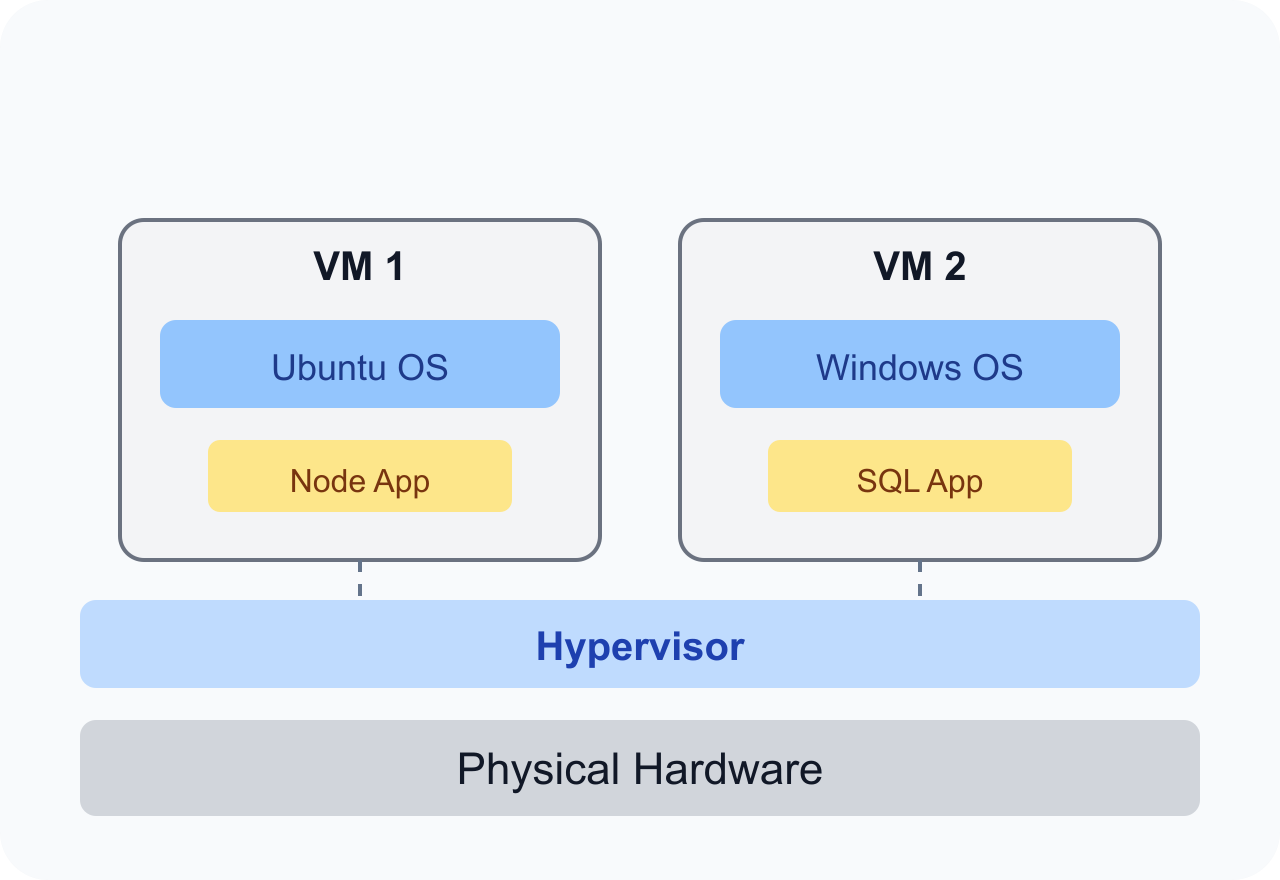
That full OS costs memory. Two small VMs:
VM 1 reserves 2 GB even if its app uses only 500 MB. The rest is locked. No one else can use it. Isolation is solved — but memory is still wasted.
Step 6 — Containers
Now compare with containers. Same hardware — but no OS inside each box.
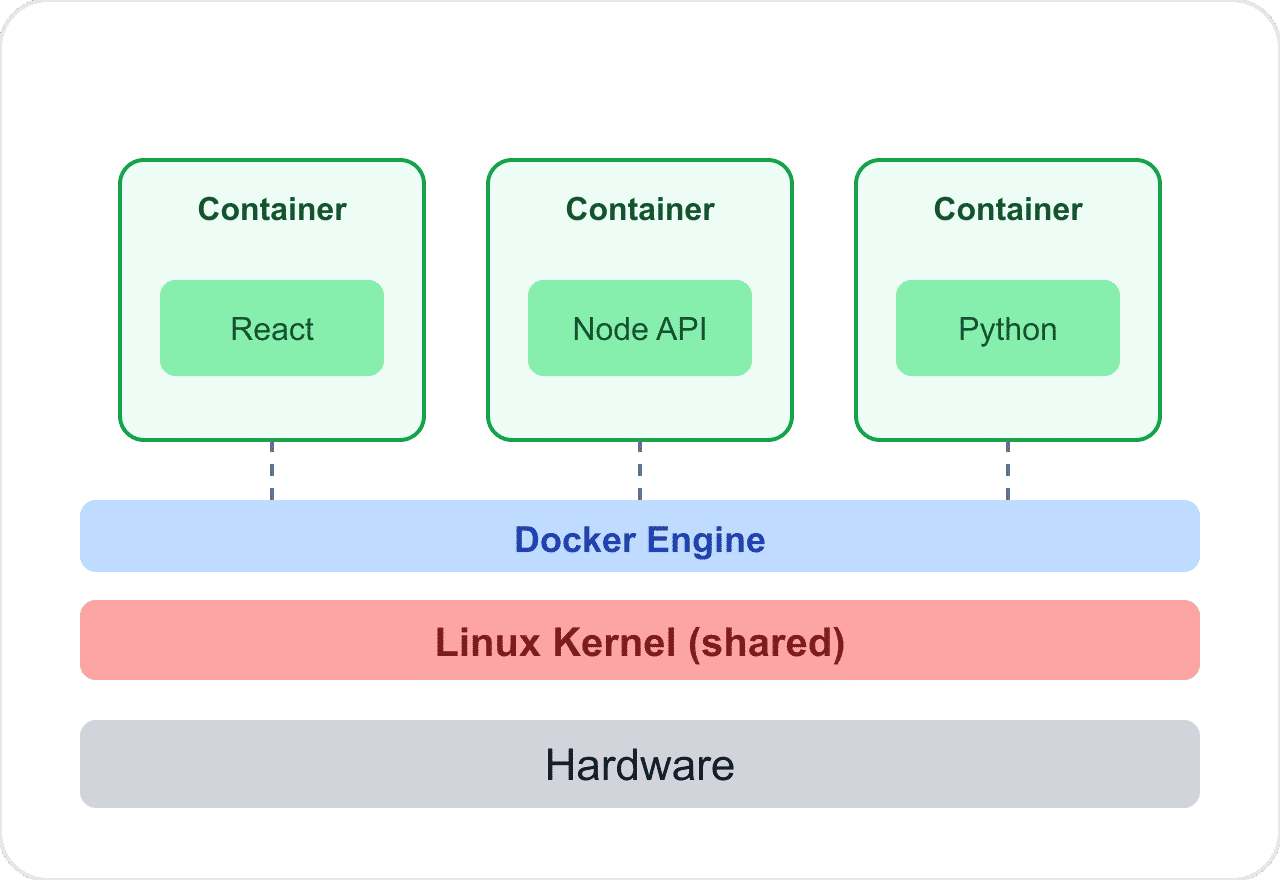
Containers share the host kernel. They do not bring a full operating system.
How do CPU and RAM work here? Remember, each VM locks a fixed block — 2 GB, even when empty. Containers do not lock anything. All three containers share the host's CPU and RAM. The React container takes memory only when it needs it, and gives it back when it is done. The kernel manages this sharing — that is its job. If the React app is idle, the Python app can use that free RAM.
Each container is still isolated — it has its own files, its own packages, its own Node version. But the resources under them are one shared pool. That is why one server can run many more containers than VMs.
This is the biggest concept in Docker. If you remember only one sentence from this page, remember the one in the box above.
Step 7 — So, What Is Docker?
Definition: Docker is a platform that creates and manages containers.
You only need three words to start:
| Word | Meaning |
|---|---|
| Image | Blueprint |
| Container | Running application |
| Docker Engine | Creates containers |
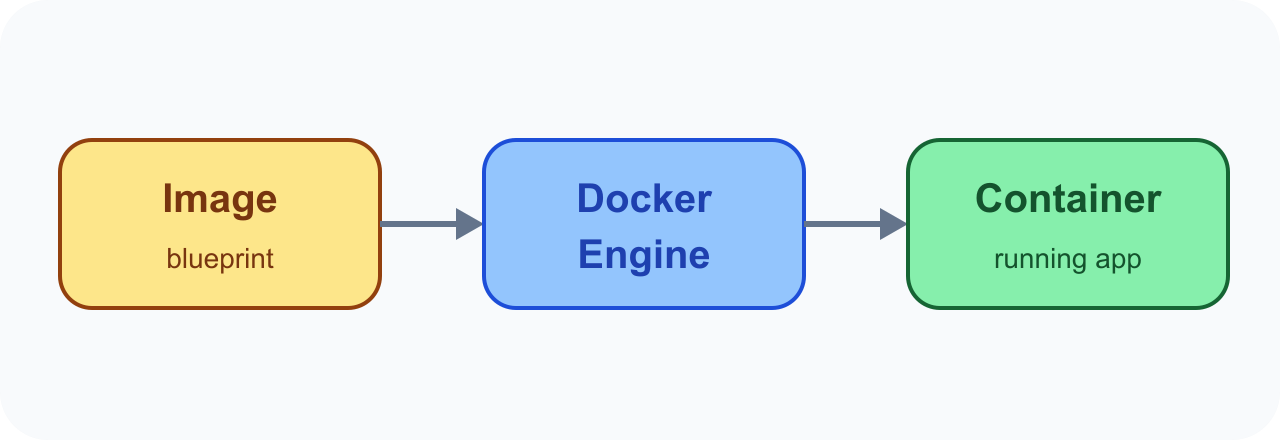
Docker Engine reads the image (blueprint) and starts a container (running app). One image can start many identical containers — the same blueprint, many houses.
Step 8 — The Container Flow
An image is the blueprint. To make an image, you write a Dockerfile. It is a small recipe file. Here is one for a React app:
Run one command on your laptop:
The whole journey in one picture — your application and its Dockerfile create the image, and running the image creates the container:
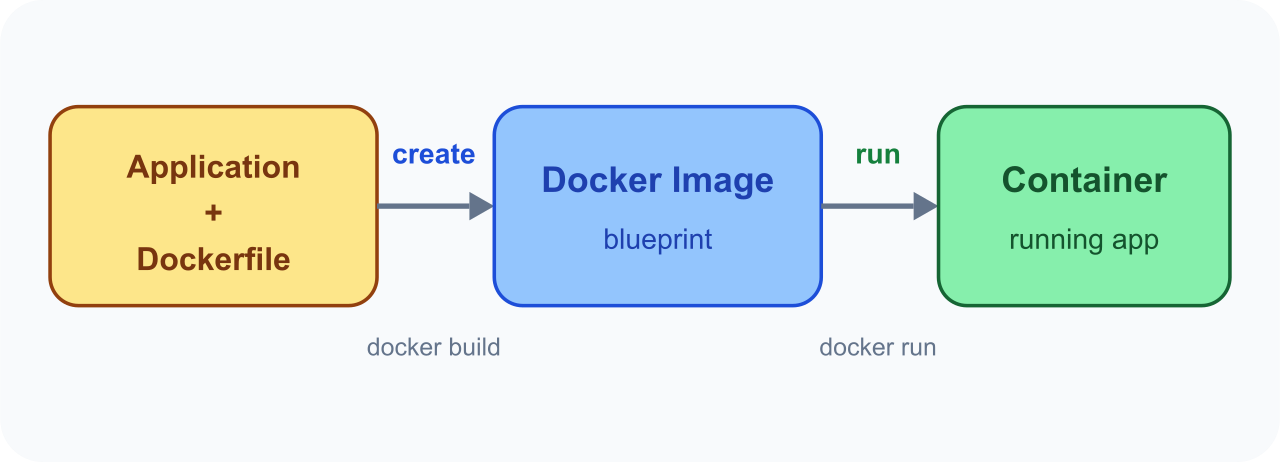
This creates the image. But the image is only on your laptop. Your team cannot use it yet.
Question: Where do you share code with your team?
GitHub. Images work the same way. They need one central place too. That place is Docker Hub (opens in a new tab). AWS has its own version of it: ECR (opens in a new tab) (Elastic Container Registry).
Dockerfile → build → Image → push → Docker Hub / AWS ECR → pull + run → Container
You docker push the image up. Anyone on the team can docker pull it down and docker run it. Same image everywhere — laptop, server, cloud. That is how Docker kills the "works on my machine" problem. The full mechanics of images and containers live in the official Docker docs (opens in a new tab).
What's Next
That's it for this lesson. Take two ideas with you: containers share the kernel while VMs carry their own OS, and images travel through a registry the way code travels through GitHub. The next lesson opens the recipe file itself — Dockerfile Instructions Explained: all 13 instructions from FROM to VOLUME, what Docker does internally at each line, and the classic interview pairs.
← Explore the Micro Frontend Architecture series
Continue to Dockerfile Instructions Explained →
Frequently Asked Questions
Why does Docker exist?
Docker exists to solve two old problems at once. First, the works-on-my-machine problem: an app runs on your laptop but breaks on the server because the server has different software versions — for example your laptop has Node 22 but the server still has Node 16. Second, the wasted-server problem: apps installed directly on one server share everything with no walls between them, and virtual machines fix the walls but waste memory because each VM carries a full operating system and locks a fixed RAM block. Docker packages the app with everything it needs into an image, and runs it as a container that shares the host kernel — so the same image runs identically on every machine, with real isolation and no wasted OS overhead.
What is the works-on-my-machine problem?
It is the classic failure where the same code behaves differently on two machines. You build a React app on your laptop with Node 22 and Vite 6 — npm run build passes. You deploy it to a server that still runs Node 16 — Vite needs Node 18+, npm install fails, the app breaks. Same code, same package.json, different machine, different result. The root cause is that the code depends on the environment around it (runtime versions, system packages, OS), and that environment is not shipped with the code. Docker fixes this by shipping the environment too: the image contains the app plus its exact Node version and packages, so the container behaves the same on every machine.
What is the difference between a container and a virtual machine?
A virtual machine contains its own full operating system and reserves a fixed slice of the server — its own CPU share, its own RAM block, its own disk. Two small VMs at 2 GB each lock 4 GB even if their apps use 500 MB. A container brings no operating system of its own: all containers share the host machine's kernel through Docker Engine, and they draw CPU and RAM from one shared pool, taking memory only when needed and giving it back when done. Both give isolation — a container still has its own files, packages, and runtime versions — but containers start in seconds instead of minutes and one server can run far more containers than VMs because nothing is locked or duplicated.
Do containers have their own operating system?
No — and this is the single most important idea in Docker. Containers share the host machine's kernel; they do not boot or carry a full operating system the way virtual machines do. A container holds only the application, its files, and its packages (for example its own Node version). When the React container inside a server is idle, the Python container next to it can use that free RAM, because the kernel manages one shared pool of CPU and memory for all containers. An image may include a thin Linux userland (like Alpine's files) so the app has the libraries it expects, but the kernel underneath is always the host's — nothing boots inside the container.
What is the Docker Engine?
Docker Engine is the platform piece that creates and manages containers. It sits between your containers and the host's kernel: it reads an image (the blueprint), starts a container from it (the running application), gives that container its own isolated files and network, and lets all containers share the host kernel and one pool of CPU and RAM. The three words to remember are: Image = blueprint, Container = running application, Docker Engine = the thing that turns the first into the second. When you type docker build, docker run, docker push, or docker pull, you are talking to Docker Engine.
What is the difference between a Docker image and a container?
An image is the blueprint; a container is the running application built from that blueprint. You describe the image in a Dockerfile — a small recipe file that says which base to start from (FROM node:22-alpine), what to copy in, and what command to run. Running docker build turns the Dockerfile into an image. Running docker run tells Docker Engine to read that image and start a container from it. One image can start many identical containers, the same way one class can create many objects, or one blueprint can build many houses. The image never changes when the container runs — containers are the live, disposable copies.
What is Docker Hub?
Docker Hub is the central place where images are shared — the same role GitHub plays for code. After docker build, the image exists only on your laptop and your team cannot use it. You docker push the image up to Docker Hub, and anyone on the team can docker pull it down and docker run it — on their laptop, on a server, or in the cloud. The same image runs everywhere, which is exactly how Docker kills the works-on-my-machine problem. Cloud providers run their own registries with the same idea: AWS has ECR (opens in a new tab) (Elastic Container Registry), and the flow stays Dockerfile → build → image → push → registry → pull + run → container.